How to Create a Professional Invoice in Just Minutes
Mar 28, 2026 · 9 min read
Creating a professional invoice does not require advanced design skills or complicated accounting software. If the commercial terms are already agreed upon, you can prepare the necessary information, enter it into a structured invoice generator, review the result, and export a PDF in minutes.
Speed, however, should not replace accuracy. A professional invoice must help the client identify the seller, understand what was provided, see what is owed, and know when and how to pay. This guide gives you a repeatable workflow for producing that document efficiently without skipping the review that prevents avoidable delays.
Quick answer: Prepare the seller and client details, assign a unique invoice number, add the issue and due dates, describe each line item, verify calculations and payment instructions, then open the exported PDF before sending it. Requirements vary by jurisdiction, so verify any mandatory tax or registration details separately.
Table of contents
- Prepare the information before you start
- Create the invoice in six steps
- Use descriptions that clients can approve
- Review the document before sending
- Common mistakes that waste time
- When to use FreeGenDoc
- Frequently asked questions
Prepare the information before you start
The fastest invoice workflow begins outside the generator. Gather the source information first so you are not searching through messages while completing the form.
Prepare your business name and contact details, the client's correct billing identity, the project or purchase-order reference, the agreed price, and a description of each product or service. Confirm the currency, payment terms, and the address or method the client expects you to use for billing.
If taxes or discounts apply, determine their treatment from the agreement and appropriate official guidance. Do not guess a tax rate because a previous invoice used it. Your tax status, customer type, transaction, and jurisdiction can affect what belongs on the document.
A compact preparation checklist is:
- Seller name and appropriate contact details
- Client's exact billing name and address
- Unique invoice number
- Issue date and due date
- Quote, contract, or purchase-order reference
- Line-item descriptions
- Quantities or hours
- Agreed rates
- Currency
- Applicable taxes or discounts
- Payment instructions
- Optional note to the client
Create the invoice in six steps
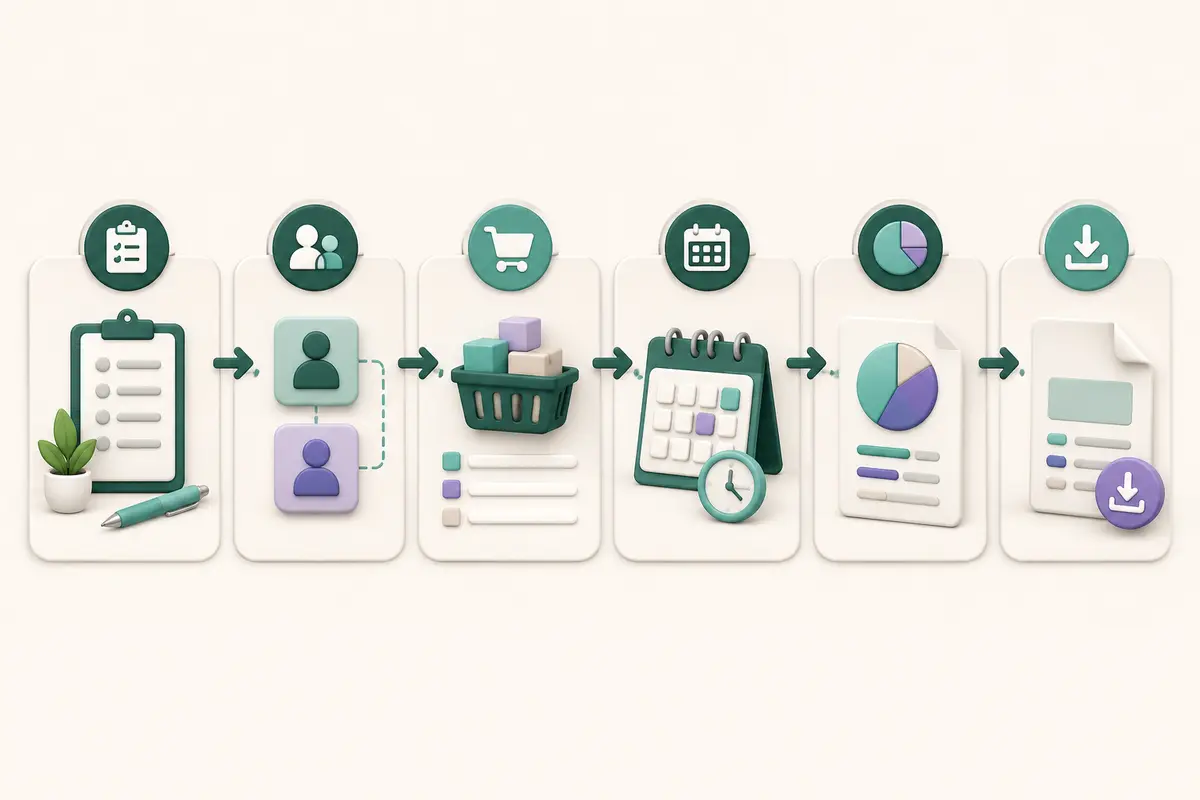
Step 1: Enter the seller information
Use the business or trading identity you normally present to clients. Add only the contact and registration information appropriate for the invoice. Consistency matters: changing how the business name appears from one document to another can make internal client checks more difficult.
If you use a logo, make sure it remains readable at invoice size. A logo is optional; clear business identification is not.
Step 2: Enter the client's billing details
Use the legal or organizational name provided for billing, not simply the name of the person who requested the work. Larger clients may require a department, billing address, tax identifier, or accounts-payable contact.
Check the purchase order or onboarding instructions before sending the invoice. A correct document sent to the wrong entity can still be rejected.
Step 3: Assign the invoice number
Give each issued invoice a unique reference. Your sequence might be chronological or include a year or client code, but it should remain consistent and understandable in your records.
Avoid numbers that expose private information or create unnecessary confusion. Once an invoice has been sent, do not quietly reuse its number for a different transaction.
Step 4: Add issue and due dates
The issue date records when the invoice was created or issued. The due date tells the client when payment is expected. It should reflect terms already accepted through a quote, contract, purchase order, or established working relationship.
Write the actual due date when possible instead of relying only on wording such as “Net 30.” A specific date is easier for both parties to understand.
Step 5: Add products or services
Create one line for each logical product, service, milestone, or billing period. Enter the quantity and rate, then confirm the resulting line total. A fixed project may use a quantity of one; hourly work should match verified time records.
The description should be concise but recognizable. “Consulting” is vague. “Customer onboarding workflow review — August” gives the client more context without turning the invoice into a project report.
Step 6: Review and export the PDF
Confirm the subtotal, adjustments, final amount, currency, and payment instructions. Then generate the PDF and open it. Check page breaks, line wrapping, spacing, and the visibility of important totals.
Name the file clearly, for example invoice-1042-client-name.pdf. Store a copy in your own records before sending it through the agreed channel.
Use descriptions that clients can approve
Line-item wording should connect the invoice to work the client already recognizes. The goal is not to write a sales description; it is to help an approver match the charge to a project, delivery, period, or accepted quote.
Useful descriptions often contain a deliverable and context:
- Homepage wireframe and responsive layout
- Monthly website maintenance — August 2026
- Product photography — 20 edited images
- Strategy workshop and follow-up report
- Replacement filters — 12 units
Avoid descriptions that reveal confidential information unnecessarily. If a detailed timesheet or delivery report is required, provide it separately and use a concise reference on the invoice.
For milestone billing, describe the milestone rather than repeating the entire project scope. For recurring work, include the service period. For reimbursable expenses, follow the agreement and retain supporting documentation.
Review the document before sending
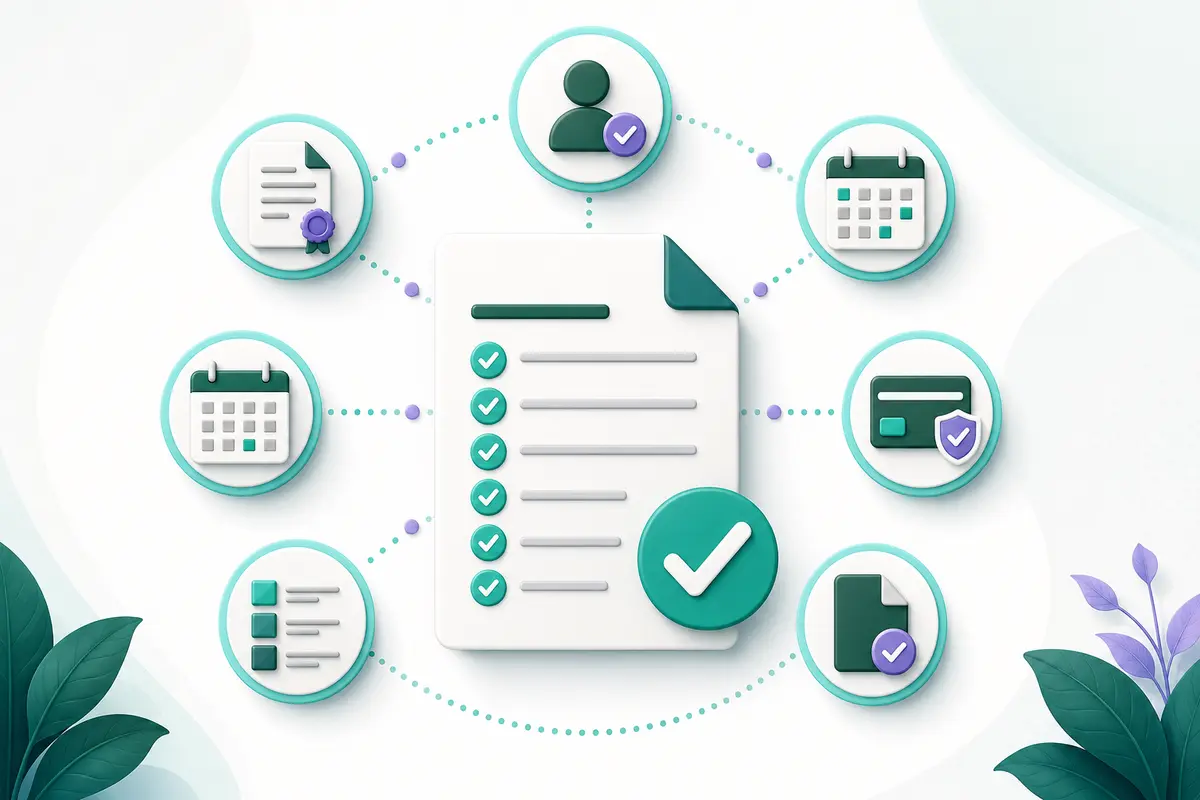
A review can take less than two minutes and prevent days of back-and-forth. Read the document as if you were the client approver.
First, confirm identity: are the seller and client names correct? Next, confirm references: is the invoice number unique, and is the purchase-order or project code present if required? Check dates, quantities, rates, taxes, discounts, currency, and the final amount.
Review payment instructions carefully. They should be accurate, complete enough for the agreed method, and free from unnecessary sensitive data. Be alert to unexpected changes in payment information, particularly if details were copied from an unverified message.
Finally, inspect the actual PDF on both a desktop and, when practical, a phone. Make sure important details are not cut off and that the invoice is legible without zooming excessively.
A realistic five-minute workflow
Imagine a freelance designer billing a client for an approved homepage project. The designer has the accepted quote, client billing details, and agreed due date ready.
During the first minute, the designer confirms the business and client identities. During the second, they assign the next invoice number and add the issue and due dates. During the third, they enter two line items: homepage wireframe and responsive visual design. During the fourth, they check the subtotal, currency, and payment instructions. During the fifth, they download, open, rename, and store the PDF.
The process is fast because the underlying commercial decisions were already made. If scope, pricing, tax treatment, or payment terms are unresolved, stop and confirm them rather than using the generator to make assumptions.
Common mistakes that waste time
Starting without the client billing identity
The project contact and billing entity may differ. Ask for the correct details before creating the final invoice.
Inventing descriptions from memory
Use the accepted quote, contract, work log, or delivery record. Memory is a poor substitute when scope changed during the project.
Adding new payment terms
The invoice should reflect the agreement, not introduce surprise deadlines or fees. Resolve changes separately and document acceptance.
Trusting calculations without reviewing inputs
Automatic multiplication cannot detect an incorrect quantity or rate. Verify the source values, not only the arithmetic.
Sending the preview instead of the exported file
Download and open the PDF. A preview may not reveal every page-break or font-rendering issue.
Forgetting your own record copy
Keep the issued version with a filename and storage method that allows later retrieval. Document creation is only one part of good record management.
When to use FreeGenDoc
Use the FreeGenDoc Invoice Generator when you need a straightforward professional invoice PDF and already know the billing details. It works well for occasional freelance invoices, service-business billing, and other simple transactions where you prefer a no-sign-up browser workflow.
If the client has not approved the work or price yet, create a quote or estimate first. When payment has been completed and the client needs proof, prepare a separate payment receipt.
Use dedicated accounting or invoicing software instead when you need recurring billing, automatic payment reconciliation, multiple users, integrated tax reporting, or a synchronized customer ledger.
Frequently asked questions
How long does it take to create an invoice?
If the business, client, line-item, price, and payment details are ready, a simple invoice can be created in a few minutes. Complex tax treatment, missing purchase orders, unresolved scope, or unclear client information should be addressed before generating the final document.
Should I use an invoice template or generator?
A template offers direct control but requires manual formatting and calculations. A generator provides structured fields and consistent output. Either can work; choose the option that reduces errors and fits your record-keeping process.
Can I create an invoice without an account?
Yes, some browser-based generators support a no-sign-up workflow. Verify the provider's export limits, watermark policy, privacy explanation, and available fields before entering information.
Does an invoice need a due date?
A clear due date is useful because it tells the client when payment is expected. Whether it is legally mandatory depends on the transaction and jurisdiction. It should match the payment terms already agreed upon.
Is a PDF the best format for an invoice?
PDF is widely used because it preserves layout and is easy to store and share. Confirm that the recipient accepts it and that the exported file remains readable and accessible.
Final takeaway
A professional invoice is the result of preparation and review, not decoration. Gather accurate details, follow a consistent six-step process, inspect the exported PDF, and keep a copy. When the transaction is straightforward, FreeGenDoc can remove the formatting work so you can focus on the information that matters.
Related articles
- Best Free Invoice Generator for Small Businesses
- Quote vs Invoice vs Receipt: What Is the Difference?
- 15 Invoice Mistakes That Can Delay Your Payment
Sources to verify before publication
- Official invoice and tax requirements for the target jurisdiction
- Client-specific purchase-order and billing instructions
- Final production behavior and privacy wording of FreeGenDoc
This article is general information, not legal, tax, financial, or accounting advice.
Ready to try it yourself?
Open the tool